Go to Homepage Download

What's new in MailWasher Pro 8

MailWasher Pro version 8 has many new features and a whole new look.
Read below to find out more.

1. A new look
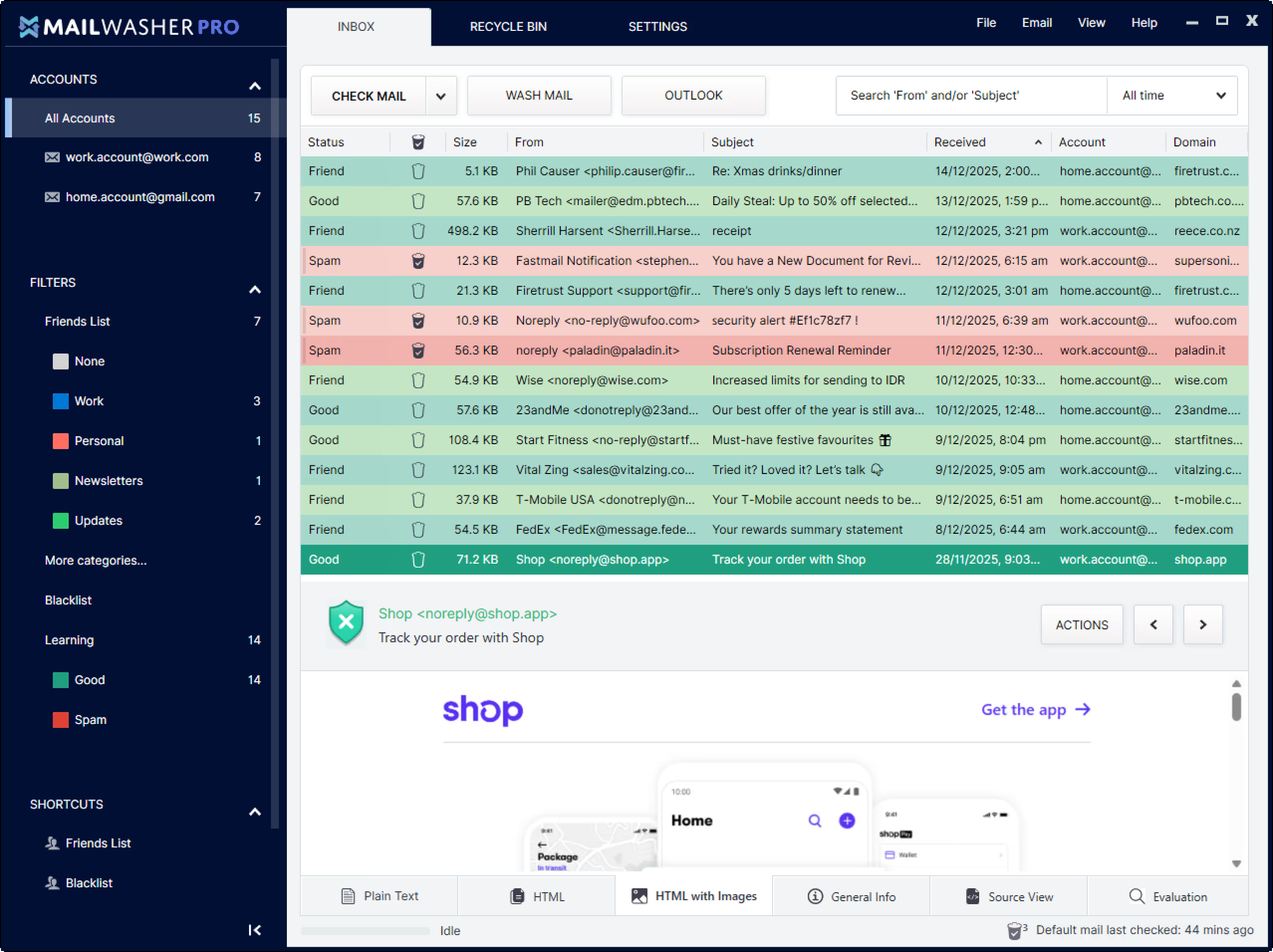
While everything should be instantly recognizable, MailWasher now has a more modern look, better spacing, and a side bar to easily view different email accounts, filters, and shortcuts to Settings. There's lots of configuration options to make MailWasher look the way you want and you can pop out the settings to a different screen to make changes separately.

Why?


We know it's always difficult to get used to a new look, that's why we've focused on adding improvements to what we think has been missing. The Sidebar, like all modern email programs, now splits up your email accounts so they're easier to read. Filters show emails classified so they're easier to review. It's much easier to view the emails in HTML and all other aspects of an email.
2. Better Email Previews
Quickly switch between a different view of your email. See emails in plain text, HTML without images, HTML, The email header + Source, and spam/good evaluation.

Why?


Most emails are sent in HTML now, and a lot don't include any plain text which makes it difficult to read them. Now you can easily view and switch between different formats. HTML without images will prevent email senders from knowing if you've read their email. Adding a quick way to look at the email content, source and evaluation makes it quicker to look at how an email is evaluated.
3. Friendslist Categories
Now you can add people's names in your friends list, and add them to a category - like newsletters, promotions, etc so you can more easily organise your emails.

Why?


Working through your friendslist can be a bit of a headscratcher when they don't include a name, so we included that. Plus categorieies makes it easier to quickly view all your emails in a particular category.
4. Side Panel
MailWasher now has a left side panel and displays each email account separately, (you can also multi-select). Also, it shows filters, letting you click on each filter to see what emails are recognized by the filters.

Why?


If you get a lot of emails, now it's easier to categorize them into different views. Selecting an email account and a filter is like using a checkbox. You click once to select it to show you the view of your emails and/or filter, and then click again to uncheck it. (This can be changed to single click in Settings>>Display>>Inbox).
5. Change how MailWasher Looks
There's lot of options to change how MailWasher looks. From the size of text and condensing the emails so you can fit more on the screen, to large text for more readability. Also change the colors of the border and emails.

Why?


Many people find it difficult to read small text, so MailWasher gives you lots of options to change it to how you need. On the other hand, other people want to fit as many emails on the screen as possible. We hope we've catered to all users.
6. Classifying emails as good and spam
Classifying emails (thumbs up and thumbs down) to train MailWasher on what is spam and good is now in the Status column, but you can only see thumbs up and down icons when you mouse over an email.

Why?


We felt having an extra column for just classifying emails was a waste of space, so we integrated it into the status column so now you can train the email as good or spam more efficiently.
7. Shortcuts
Now you can have shortcuts to your most used settings, and also pop-out the Settings page into its own window so you can make changes and see them in real-time in the MailWasher Inbox.

Why?


Shortcuts are a great way to avoid clicking around trying to find settings. You can add and change Shortcuts and they'll appear on the inbox side bar.
8. Custom Filters with groups + Live Test
Now you can group filters. So this means when creating a custom filter you can do things like this.

Find all emails with... AND this... OR this.... But NOT this....

This makes filters more flexible, readable and easier to understand.

Plus, you can test and adjust your filters in real-time against your emails or any text in the new filter test area.

You’ll get the best
support.

Most sites will tell you that they offer fast and real support but unfortunately their promises fall short of this goal.

How do we offer the best customer support? Because we have full-time staff whose jobs are purely to help you get the best from MailWasher Pro.

Under normal circumstances, we answer all email from registered users within 24 hours, every single day of the week including public holidays!

Testimonials

30 Day, No Risk, No Questions Asked, Money Back Guarantee

If at any stage within 30 days of your purchase you don't want to keep product name, just email as at [email protected] and ask for a refund.

FAQ

    MailWasher works with every email program, since all email programs support POP3 or IMAP. eg. Microsoft Outlook, Microsoft Mail, OeM Client, Windows Live Mail, Thunderbird, GMail, Hotmail, AOL, Postbox, Outlook.com, Yahoo and so on.

    MailWasher logs in to your email accounts at your internet provider and downloads a copy of the email allowing you to read all your email on the server. Your email actually stays on the server at your internet provider, but MailWasher lets you inspect and interact with your email.

    MailWasher uses its built in spam tools to best determine what is spam and what is good email. You’ll get great results if you initially train MailWasher to learn which of your email is good and which is spam. You can easily mark email for deletion, report spam to authorities, bounce spam back to senders and train MailWasher to better recognize spam and good email. Then, simply pressing the ‘Wash Mail’ button will remove spam and unwanted email from the server so you can download the remaining good email to your email program.

    Using MailWasher is easy, but you should always check your email with MailWasher first, because once it’s been downloaded to your email program, MailWasher can’t interact with it.

    MailWasher comes built in with great spam tools which lets you customize how spam and good email is handled, but you’ll get fantastic results when you train Mailwasher. All you need to do to train MailWasher is to click the ‘Thumbs up’ or ‘Thumbs down’ icons in the Classify column when MailWasher gets it wrong or doesn’t evaluate it as good or spam. After doing this to about 10-20 emails, MailWasher will do it all for you from then on.

    You’ll find these in the What’s New page.

    You can rescue it from the recycle bin. Just click on the Recycle Bin tab, find your email and press the ‘Restore’ button and it will appear back in your inbox.

    English, German, French, Spanish, Polish, Dutch, Hungarian, Bulgarian, Ukranian, Swedish, Russian, Czech, Norwegian, Armenian, Croatian, Danish, Japanese, Portuguese, Italian, Chinese (Traditional and Simplified) and Pirate! Help translate MailWasher.

    Take a look at the Quick Start Guide, or watch Helpful Videos on how to do specific things in MailWasher. We’ve compiled a list of 24 Quick Tips and Tricks, plus Advanced Features if you want to know more about custom filters and translating MailWasher.

    Each license allows you to use MailWasher on 3 of your computers.

    US$49.95 which covers support, ongoing updates, real-time spam blocking and the mobile version. You can try MailWasher fully featured for free for 30 days. You also get a 30 day, no risk, no questions asked money back guarantee.

    Windows 7, 8, 10, 11 with .NET 4. 1GB of RAM, 64Mb of disk space recommended, and an Internet connection.

    Check out the Support Page, or send our friendly support team an email with your question.

Other Products

  • The ultimate spam blocker software.

    Unlike the Pro version, limited to one email account, no recycle bin, limited email preview, no mobile sync

    Over 10 million people use MailWasher as their spam blocker to stop spam - get your 30 day free trial. Stop spam, unwanted email and other junk with the award winning MailWasher.

  • Instant protection from spam

    MailWasher Server stops spam while offering a polished, well-integrated web interface & built-in quarantine management facilities.

    It is simple for administrators to set up and manage and easy for users to use on a day-to-day basis. Supports all Windows and Linux mail servers and operating systems.

  • Hideaway super fast vpn

    HideAway reinvents and improves the VPN by adding flexible rules, faster speeds and an ‘Always on’ capability, while at the same time giving users a secure connection, privacy and simultaneous access to your favorite sites around the world.